
Corsair Xeneon Edge
AION 2 on the Corsair Xeneon Edge Free iCUE widgets with a DPS meter and boss warnings
Put AION 2 on the Xeneon Edge’s 2560 × 720 touchscreen. Page 1 follows the boss and your party, page 2 the world timers and farming, and page 3 your PC.
Windows 10 / 11 · iCUE 5.47+ · AION 2 Global
Three pages
What is on each Xeneon Edge page
Each page widget fills the whole screen. Tap the small previous and next buttons () in its top corners to turn the page (or swipe); you only need to when you change what you are doing, never in the middle of a pull.
1 · Group: boss fight and DPS meter
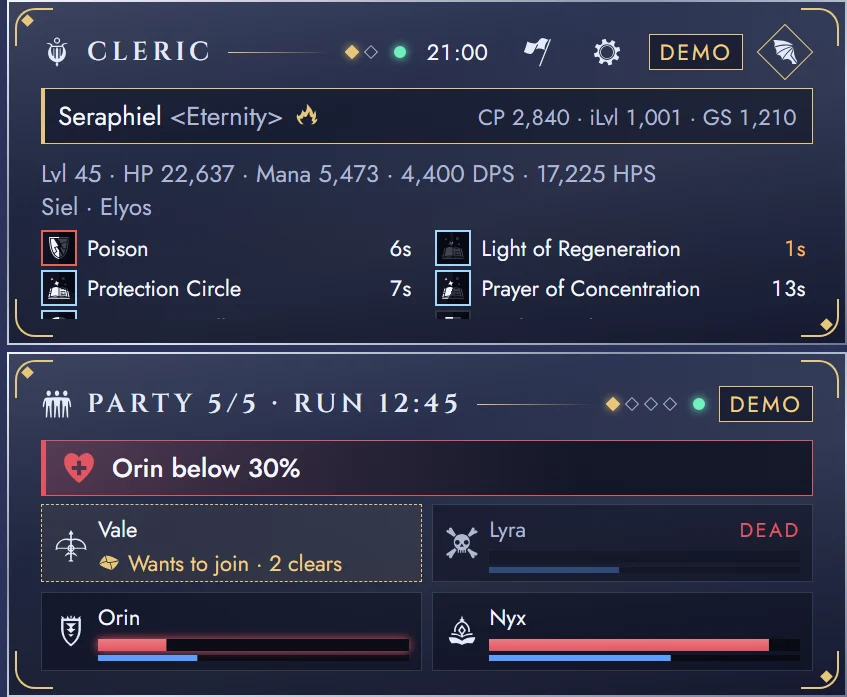
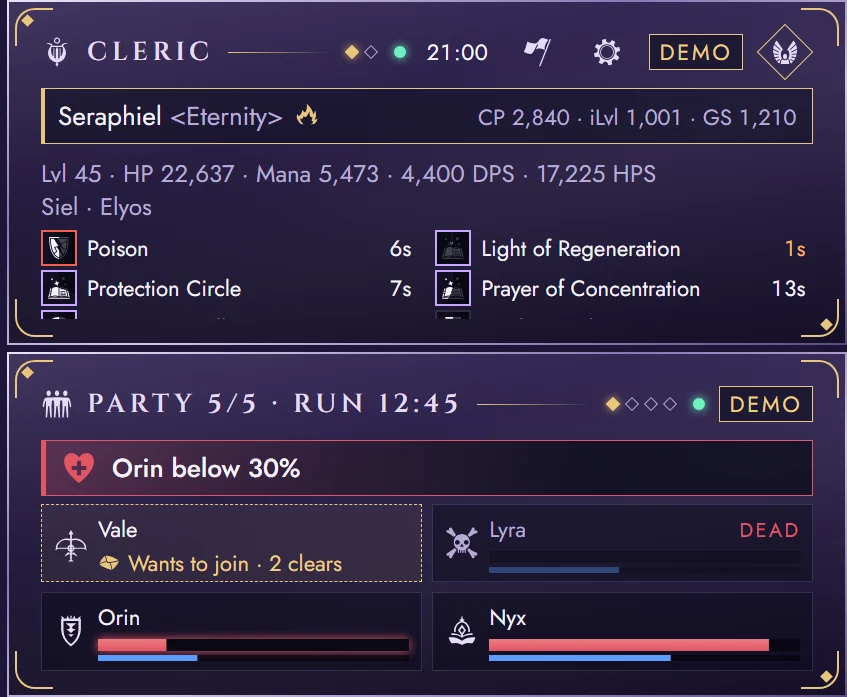
For dungeons and boss fights. The Encounter card shows the boss’s HP, the stagger gauge, the cast bar and the spoken mechanic warnings with their countdown. The DPS meter sits beside it, and the right side holds your character with buffs and cooldowns and the party with HP and alerts.
2 · Progress / World
The page between pulls. World holds the reset clocks, the next world bosses and events, your Homework, dungeons and supply requests. Farming follows your pets’ souls and levels, Kinah & Crafting your Kinah per hour and crafting, and Status says whether A2Naki is running and up to date.
3 · Performance
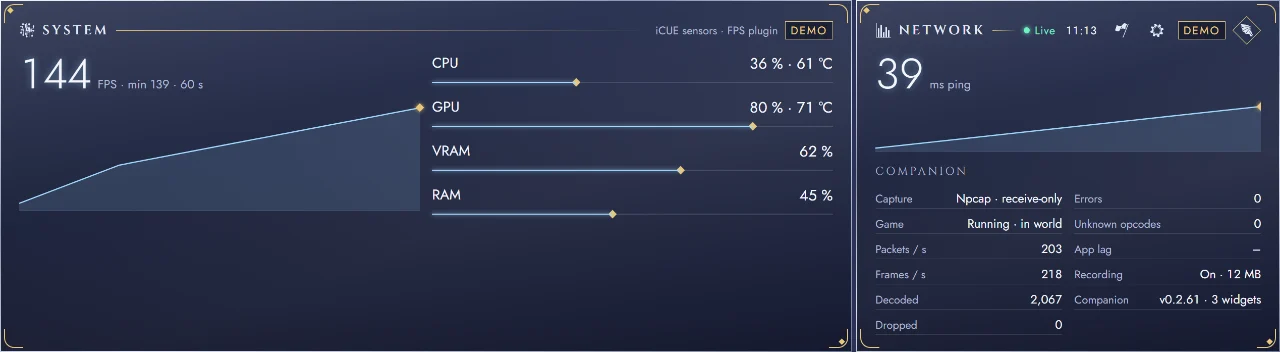
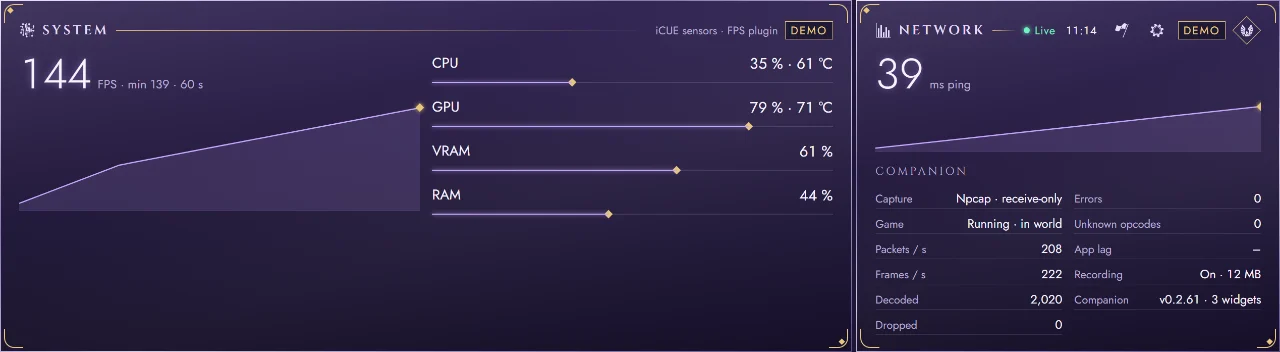
The last page reads iCUE’s sensors. It shows FPS with a graph, CPU and GPU load and temperature, VRAM and RAM, your ping and A2Naki’s own status.
Closer look
The Edge pages up close
During a boss fight the Encounter card takes the left of page 1. When the boss starts a mechanic, its warning line comes up with a countdown, and A2Naki says the call out loud at the same moment.


Your own character and the group fill the right side. A player who drops low on HP gets an alert, and someone asking to join your group shows with their dungeon clears.
Page 2 is for the time between runs: the next resets and world bosses, the pets you are farming and your Kinah.


Page 3 is for your PC. Its numbers come from iCUE’s own sensors, which is why this page needs the Edge.
Under the hood
How the widgets get their data
The widgets run inside iCUE, and A2Naki runs on the same PC. A2Naki reads AION 2’s network traffic, works out the fight and sends it to the widgets over a local connection (localhost, port 51820). That connection never leaves your PC, and the widgets reach nothing else.
From iCUE 5.52 on, a widget may only reach the addresses it lists, and only after you allow them. That is step 3 below. Until then every page says Bridge not running, the same as when A2Naki itself is closed.
Setup
How to set up the AION 2 iCUE widgets on the Xeneon Edge
- Install A2Naki and Npcap. A2Naki is behind the Download button at the top of this page (how to install it); Npcap comes from npcap.com, and the default options are fine.
- Import the widgets. At the end of setup click Import all three widgets into iCUE… (or later from the tray menu). iCUE asks once per widget, so click Import each time.
- Allow the widgets (iCUE 5.52 and later). In iCUE, click the gear, go to Widget Access and turn on “localhost” under each A2Naki page. iCUE remembers the setting, even after you reinstall A2Naki.
- Make three pages on the Edge in iCUE and drag one A2Naki page widget onto each: Group, Progress / World, Performance.
- Set the size to XL under Appearance → Size, so each widget fills the screen.
Tap a tab to switch it and tap an alert to clear it. Nothing needs a touch during combat.
The widgets in iCUE keep their version until you import them again. When they are older than the app, the Edge shows Update widgets in the Encounter header and on the Status card (a tap starts the import on the PC), and A2Naki asks once in a window, after AION 2 is closed.
Questions
Xeneon Edge FAQ
Does AION 2 support the Xeneon Edge?
Not by itself. A2Naki Companion, a free fan project, adds the three iCUE page widgets for AION 2. It is not made or endorsed by NCSOFT or Corsair.
Which iCUE version do I need?
iCUE 5.47 or newer, on Windows 10 or 11. Importing only adds the widgets to iCUE’s list (group “A2Naki”); you place them yourself.
Do I need a Xeneon Edge to use A2Naki?
No. The same pages run in any browser, on a second monitor, a laptop or a tablet, and the DPS meter can sit on top of the game as a see-through overlay.
Only the Performance page needs iCUE, because its FPS, CPU and GPU numbers come from iCUE’s sensors.
Why does the Edge say “Bridge not running”?
The widget cannot reach A2Naki. Check that A2Naki is running (its icon is in the tray), and, from iCUE 5.52 on, that “localhost” is turned on under each A2Naki page in iCUE → gear → Widget Access.
Are the widgets in an iCUE widget store?
No. They come with A2Naki: the setup imports them into iCUE, and you can import them again later from the tray menu.
Can I use just one page next to my other iCUE widgets?
Yes. Each page is a widget of its own, so you can put only Group on the Edge and keep your other iCUE pages as they are. The ‹ › buttons turn iCUE’s pages, whatever widgets those pages hold.
Is it safe for my account?
A2Naki is passive. It receives a copy of what the game server sends to your PC, and it never sends anything back or touches the game. NCSOFT may still see reading game traffic as against the terms of service, so please read Is it safe? first.
Free
Get the Edge widgets
The widgets come with the app. Import them and try them on your next run.