
Windows · Borderless or Windowed
AION 2 overlay
Put A2Naki’s DPS meter, or another of its windows, see-through on top of the game, without a second screen. Every click goes straight through to AION 2.
The overlay
Which windows you can put over the game
Each overlay window shows one view, and you can have two windows at the same time, for example the meter and the target card.
- The DPS meter with its eight tabs (Damage, rDPS, Healing, Taken, Skills, Utility, History and Summary). In a dungeon the boss card sits on top. While you fight players, the PvP card takes the meter's place until the PvP ends.
- The target card, which turns into the PvP card by itself when you fight players.
- Any of the app’s other windows (Training, PvP, Farming Pets, World, Kinah & Crafting, Status, Character, Party or Network).
In the overlay, Kinah & Crafting follows your crafting. When you start a craft, the window turns to the page of that profession by itself, and back to Kinah 2 minutes after your last craft. On the Xeneon Edge and in the browser you still tap to turn the page.
The content grows and shrinks with the window, so a small window stays readable.


How to use it
Turning it on and moving it
- Turn it on or off with Overlay in the tray menu, or with Ctrl+Shift+M. The installer can also add an "A2Naki Companion (overlay)" shortcut.
- While it is locked, the overlay never takes a click, and you play as if it were not there.
- To move it, unlock it with the padlock in the top-right corner. Then drag the top bar to move it and the edges to resize it. The bar has a gear for the settings, and Lock for when you are done.
- Two windows snap to each other and to the edge of the screen. Each one opens where you left it; if that screen is gone, it comes back at the top right of your main screen.
- Ctrl+Shift+1–8 switch the meter's tabs while you play, and Copy, next to the padlock, copies the tab you see as text.
- For a stream, the overlay window cannot be captured: show the meter in OBS as a browser source instead.
Can't see it? The overlay can’t draw over exclusive full screen, so set AION 2 to Borderless or Windowed.
The gear
The overlay’s settings
Unlock the overlay and press the gear. Its settings are on three tabs.
- This window picks which view this window shows, adds a second one with + a window, or closes this one.
- Look has the window's opacity, a see-through background that keeps the text and bars solid, and the Copy button on or off. With Only show during combat on, the overlay hides 10 seconds after a fight and comes back with the next one. Reset position and size is here too.
- Under Shortcuts, every key can be your own, as long as it uses Ctrl or Alt. Default keys puts them back.
New in 0.2.47
Low-lag overlay and Minimal overlay
Both are switches in Preferences → Settings (right-click the tray icon → Preferences) and in the overlay's own settings (the gear → Look). You can use them on their own or together.
Low-lag overlay
On some PCs the game loses FPS, or gets input lag, as soon as an overlay sits on top of it in Borderless mode. Low-lag overlay draws the overlay a lighter way. It does not help with frame generation (see the performance part of this page). While it is locked, the meter, its tab keys, Copy and Only show during combat work as usual. Unlock it to move it or resize it; the normal overlay shows until you lock it again.
Minimal overlay
Minimal overlay is for the DPS meter's window. It shows only the meter, with thin bars and compact rows, and no tabs, header or frame around it. Ctrl+Shift+1–8 still switch between Damage, rDPS, Healing and the other tabs.
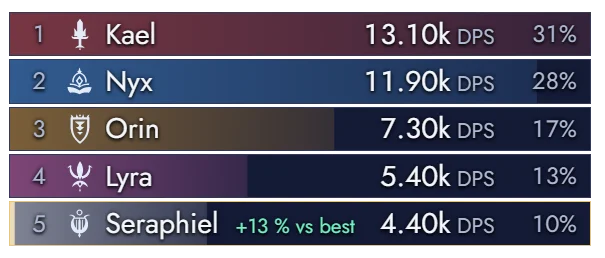
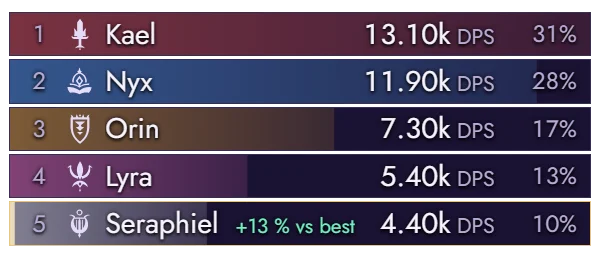
The rest of what is new is in the changelog.
Performance
Does the overlay slow down the game?
A2Naki never runs inside the game, so the game does the same work as before. Drawing a window costs a little, like any web page. If your game feels slower with the overlay on, show one window instead of two, turn on Only show during combat, and close the browser page when you don't look at it (more in the FAQ on the overlay).
AMD Fluid Motion Frames copes badly with any window drawn on top of the game, and A2Naki cannot change that. If you use it and the game lags while the overlay shows, turn off Fluid Motion Frames in AMD Software, or show the meter on the Xeneon Edge or in the browser page instead. FSR upscaling and Anti-Lag are fine.
Questions
Overlay FAQ
Is there a DPS meter overlay for AION 2?
A2Naki has one, and it is free. Turn it on with Overlay in the tray menu or Ctrl+Shift+M, and the DPS meter, or another A2Naki window, shows see-through on top of AION 2. While it is locked, every click goes through to the game.
Why can't I see the overlay in the game?
Set AION 2 to Borderless or Windowed mode, because no program can draw on top of exclusive full screen. The overlay also needs Microsoft's WebView2, which comes with Windows 11 and Microsoft Edge.
The game lags while the overlay shows. What can I do?
If you use AMD Fluid Motion Frames, turn it off in AMD Software, or show the meter on the Xeneon Edge or in the browser page instead. Its frame generation copes badly with any window drawn on top of the game, while FSR upscaling and Anti-Lag are fine. Without Fluid Motion Frames, give the overlay less to do by showing one window instead of two and turning on Only show during combat.